
Setting Up or Stopping the RTF Cycle
After you set up the RTF Holds Routing tables, you can use the settings in the Holds options: RTF dialog to set up or stop the RTF cycle at each of the following levels: System, Library, Branch.
To access the Holds options: RTF dialog in Polaris System Administration (web-based)
Note:
This requires administrative-level permissions.
-
On the Home page, select Settings and Tables.
The Settings and Tables page appears. The system displays the Settings tab by default.
-
On the left-hand side, select one of the following levels:
-
System
-
Library > Select the library you want to configure.
-
Branch > Select the branch you want to configure.
-
-
In the Module list, select Request.
A list of Request settings appears.
-
Select Hold options: RTF > Configure.
The Holds options: RTF dialog appears.
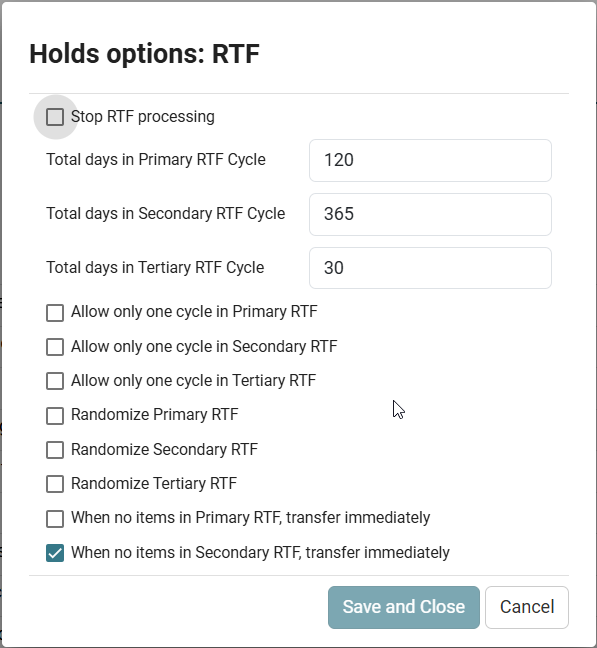
In the Holds options: RTF dialog, you can do the following to manage the RTF cycle:
Stop RTF Processing
-
Select Stop RTF processing to remove the selected organization from consideration in the RTF cycles. This setting can be configured at the system, library, or branch level. Any request pending for items at the selected location will be set back to a status of Active.
Designate the Total Number of Days in Each RTF Cycle
Designating the total number of days in each RTF cycle allows you to manage the basic RTF cycle of Polaris.
-
Total Days in Primary RTF Cycle — Enter the number of days Polaris searches the primary RTF sequence as set up in the Holds Routing Sequences Primary table.
The system searches the sequence from top to bottom, then moves to searching the branches in the secondary RTF sequence after the set number of days in Total Days in Primary RTF Cycle.
-
Total Days in Secondary RTF Cycle — Enter the number of days Polaris searches secondary RTF sequence as set up in the Holds Routing Sequences Secondary table.
The system searches the secondary sequence from top to bottom. After it completes the set amount of days cycling through the secondary sequence (Total Days in Secondary RTF Cycle), the system moves to searching the tertiary sequence of branches.
-
Total Days in Tertiary RTF Cycle — Enter the number of days Polaris searches the tertiary RTF sequence as set up in the Holds Routing Sequences Tertiary table.
The system searches the tertiary sequence from top to bottom. After it completes the set number of days cycling the tertiary sequence (Total Days in Tertiary RTF Cycle), Polaris stops searching sequences. The request status becomes Active so an item can be trapped at check-in, but the request no longer appears on the responder libraries’ RTF picklists.
This is the basic cycle, but you can Change the Basic RTF Cycle using the checkboxes in the Hold Options: RTF dialog.
Change the Basic RTF Cycle
You can manage the RTF cycle by changing the basic cycle in the following ways:
-
You can limit the number of times the system searches each RTF list by selecting one of the following checkboxes:
-
Allow only one Cycle in Primary RTF — Select this checkbox to ensure that when all responder branches in the primary routing table deny or ignore the request, Polaris searches the Primary RTF sequence only once. Polaris then moves to the Secondary RTF sequence.
-
Allow only one Cycle in Secondary RTF — Select this checkbox to ensure the system searches the Secondary RTF sequence only once before it moves to the Tertiary RTF sequence.
-
Allow only one Cycle in Tertiary RTF — Select this checkbox to ensure the system searches the Tertiary RTF sequence only once before the item stops appearing on responder branch picklists.
-
-
Polaris searches each list from top to bottom, but you can randomize the starting branch for the list by selecting one of the following checkboxes:
-
Randomize Primary RTF — Select this checkbox to tell Polaris to start with a different branch in the Primary RTF list for each new request.
-
Randomize Secondary RTF — Select this checkbox to tell Polaris to start with a different branch in the Secondary RTF list for each new request.
-
Randomize Tertiary RTF — Select this checkbox to tell Polaris to start with a different branch in the Tertiary RTF list for each new request.
-
-
Polaris cycles through the same list until it completes the set amount of days. If you want to bypass the Total Days in RTF Cycle setting when there are no eligible items, you can use the following checkboxes:
-
When no items in Primary RTF, transfer immediately — Select this checkbox to transfer immediately to the Secondary RTF list if Polaris doesn’t find an item to fill the request.
-
When no items in Secondary RTF, transfer immediately — Select this checkbox to tell Polaris to transfer immediately to the Tertiary RTF list if it doesn’t find an item to fill the request.
-
